Related Links
Integrate Dremio with IDrive® e2
Dremio is an open data lakehouse and analytics platform that enables organizations to query and analyze data across object storage, databases, and SaaS systems. It supports SQL analytics, data virtualization, governance, query acceleration, and open data formats such as Apache Iceberg for BI, data science, and AI workloads. Integrating Dremio with IDrive® e2 provides a capable, scalable cloud object storage solution that effortlessly integrates with Dremio for secure, efficient, and cost-effective data analytics and lakehouse workflows.
Prerequisites
Before you begin, ensure the following:
- An active IDrive® e2 account. Sign up here if you do not have one.
- A bucket in IDrive® e2. Learn how to create a bucket.
- Valid Access Key ID and Secret Access Key. Learn how to create an access key.
- A valid Dremio account and access to the latest version of the Dremio Server GUI.
Configure Dremio with IDrive® e2
The following steps can help you successfully configure and integrate Dremio with IDrive®e2.
- Log in to the Dremio Server GUI.
- In the Datasets window, click Add Space to add a new space.
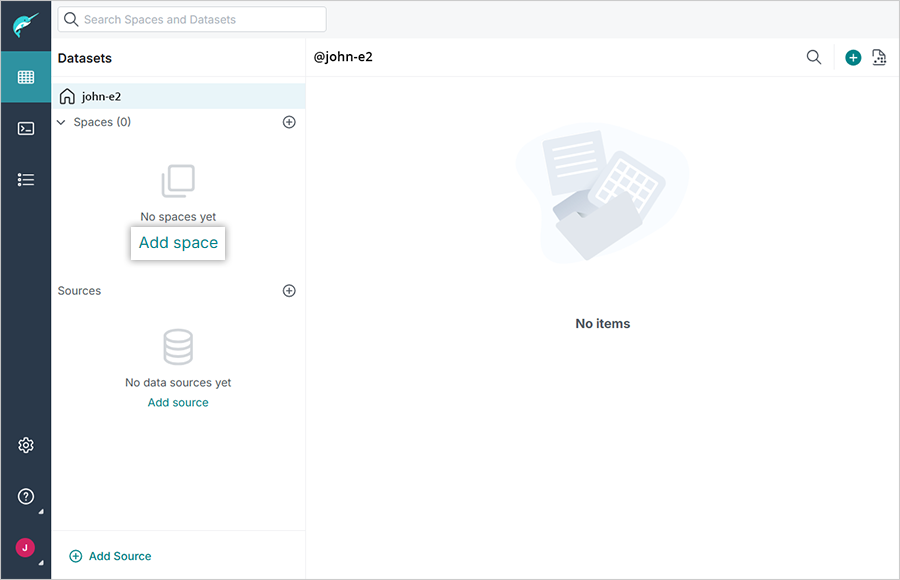
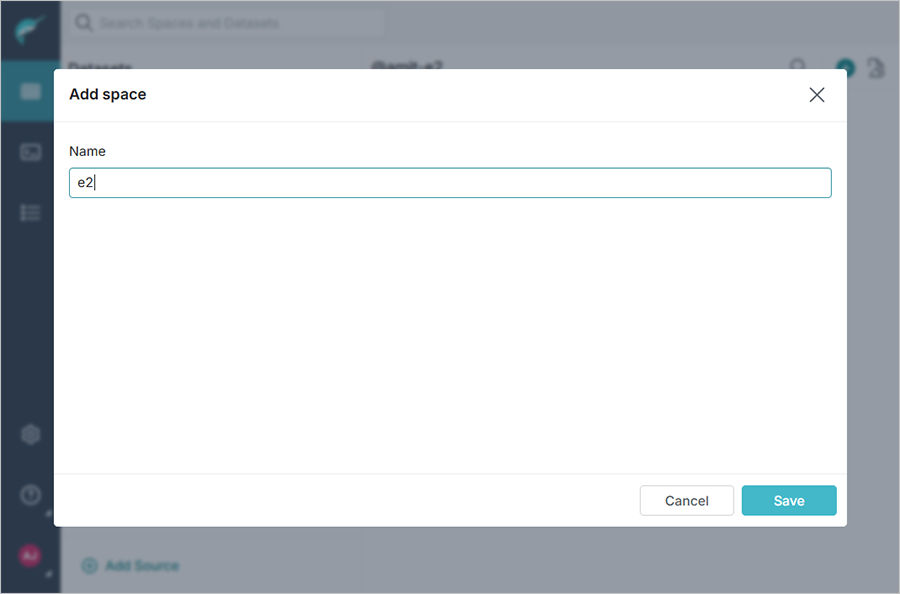
- Enter a Name and click Save.
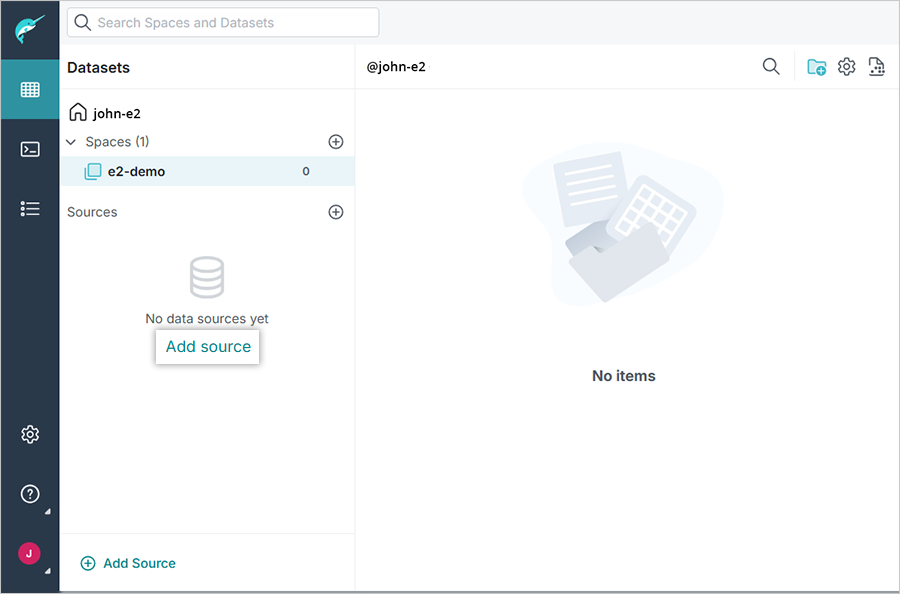
- Click Add Source to add IDrive e2 as a data source.
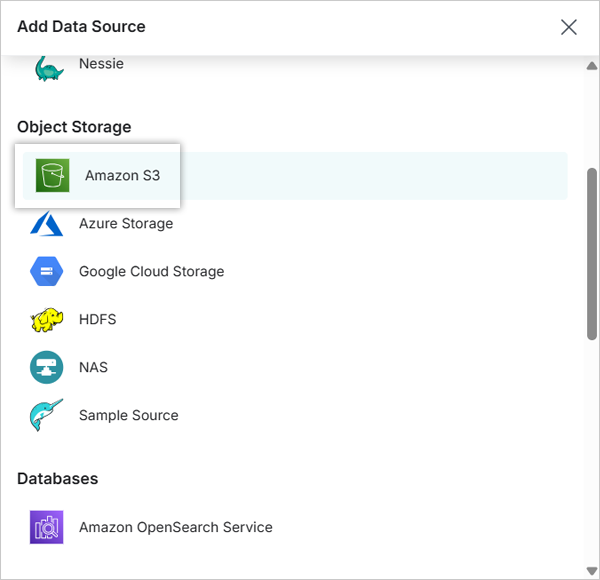
- Select Amazon S3 as the source type.
- Before entering the e2 credentials (access key and secret key), click Advanced Options and make any required changes to enable S3-compatible support.
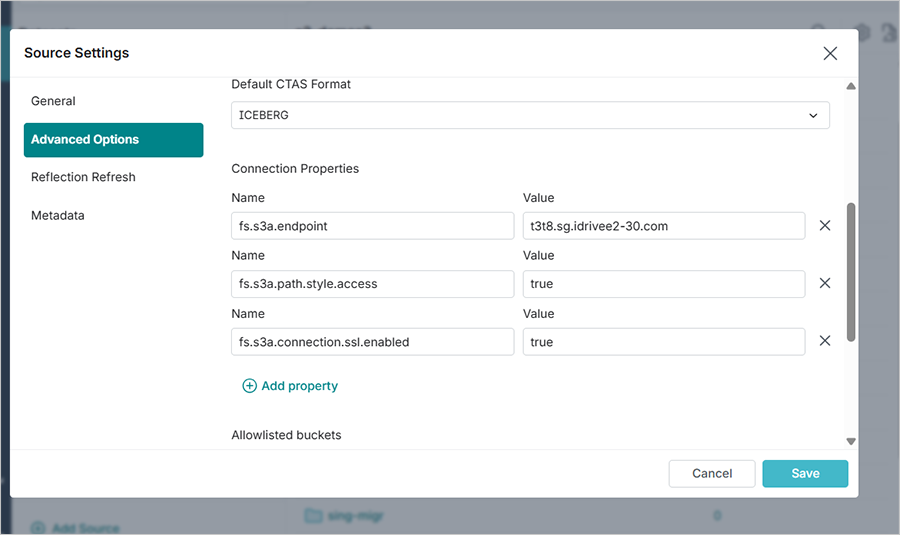
- Select the Enable compatibility mode checkbox. Click Add property.
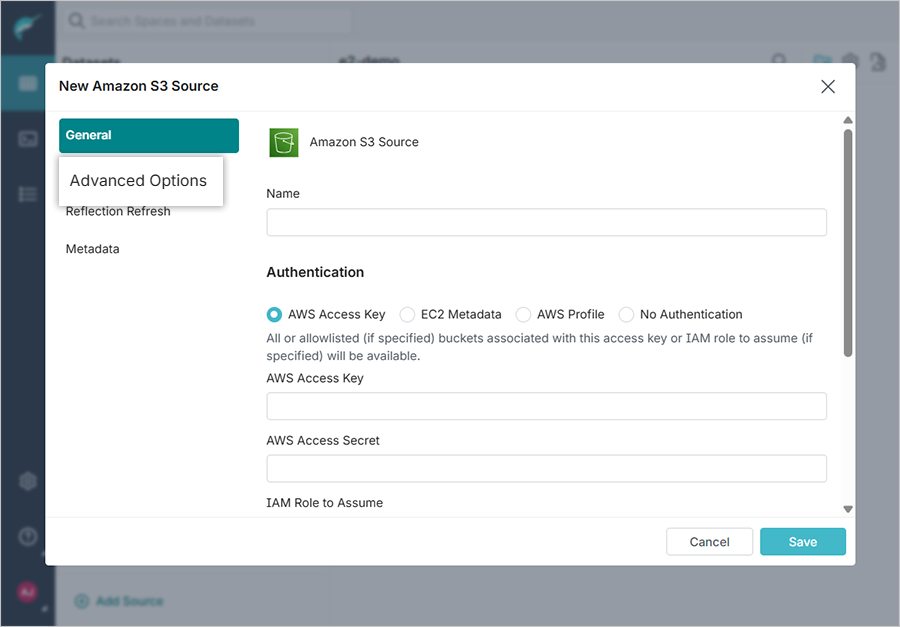
- Under Connection Properties, add the following sets as connection properties (Name and Value), then click Save.
Name Value fs.s3a.endpoint <Your Idrive e2 S3 endpoint>
(Ex: t3t8.sg.idrivee2-30.com)fs.s3a.path.style.access true fs.s3a.connection.ssl.enabled true
- In the General tab, enter the Name and credentials for your IDrive® e2 account. Click Save.
The Dremio home page displays all your buckets, as shown below.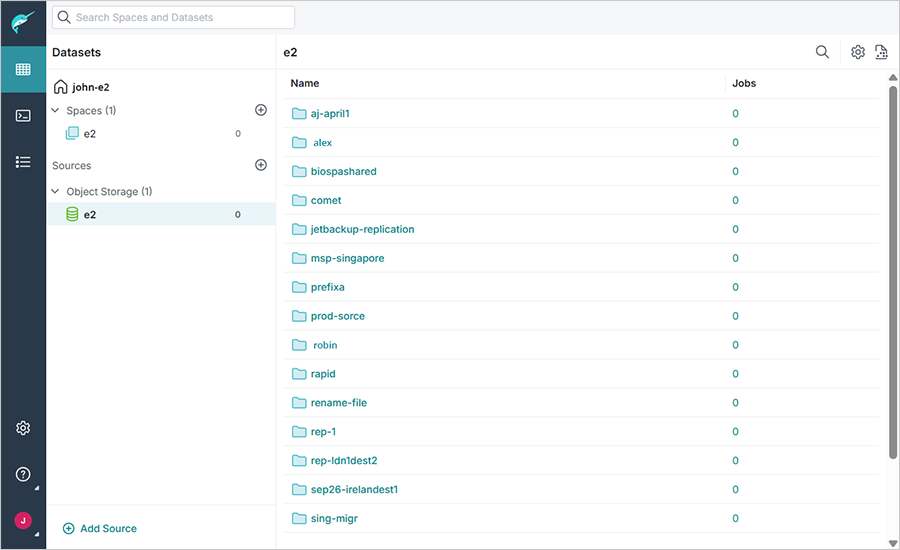
- Select the bucket to directly use the data within your buckets to run queries and analysis.