Related Links
Configure a replication rule in RustFS using an IDrive® e2 Bucket as the destination
RustFS supports bucket replication, which allows objects from a source RustFS bucket to be replicated to a destination S3-compatible storage bucket.
This guide explains how to configure a replication rule in RustFS using an IDrive® e2 bucket as the destination. The configuration enables objects uploaded to the specified RustFS source bucket to be replicated to the configured IDrivee® e2 destination bucket according to the defined replication rule.
Prerequisites
Before you begin, ensure the following:
- An active IDrive® e2 account. Sign up here if you do not have one.
- A bucket in IDrive® e2. Learn how to create a bucket.
- Valid Access Key ID and Secret Access Key. Learn how to create an access key.
- A running RustFS instance with access to the S3 API.
To configure a replication rule in RustFS
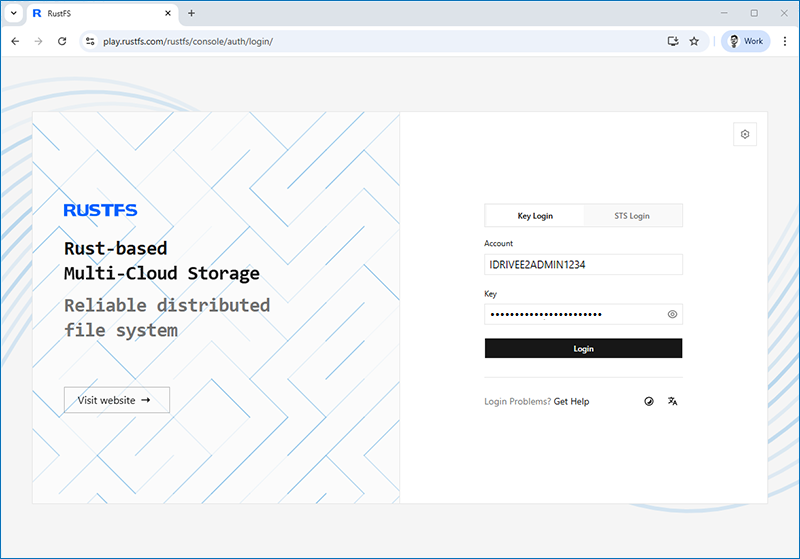
- Sign in to RustFS Server with valid Credentials.
- In RustFS, open Browser and click on Create Bucket with the required configurations.
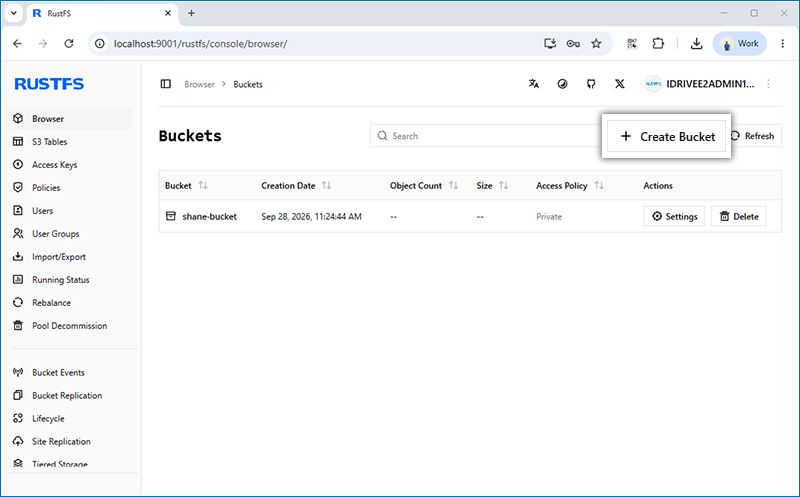
Note: Select an existing bucket that has objects that you want to replicate to IDrive e2 S3 storage.
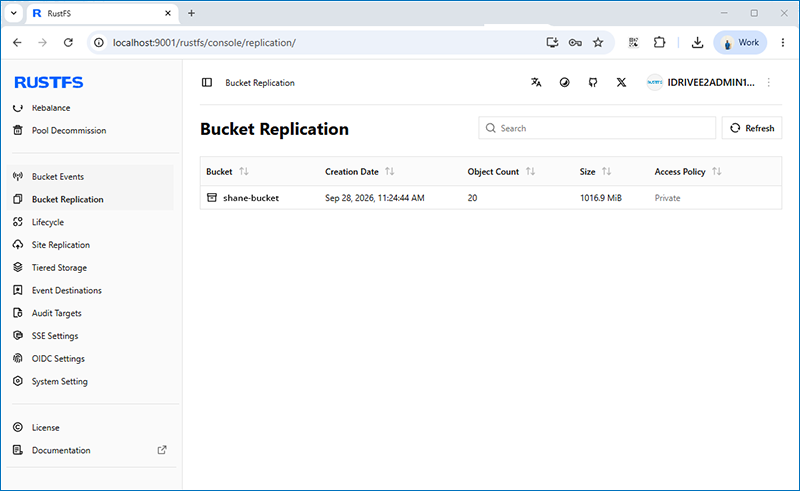
- Select Bucket Replication in LHS menu.
- Click on the bucket name that you want to replicate.
- Click on Add Replication rule.
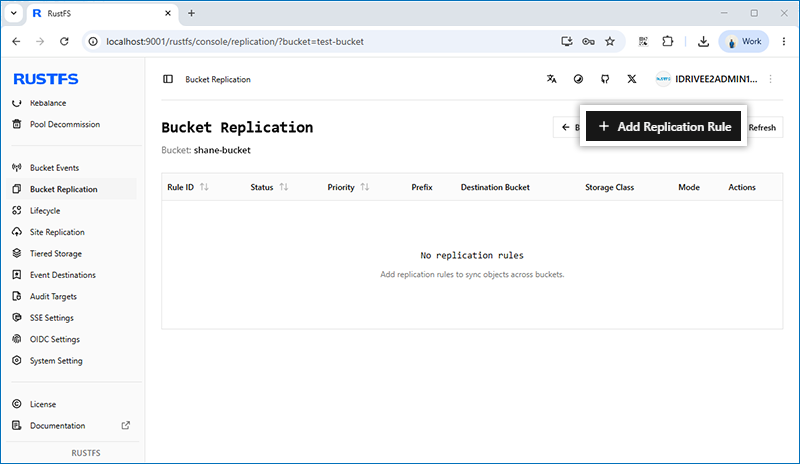
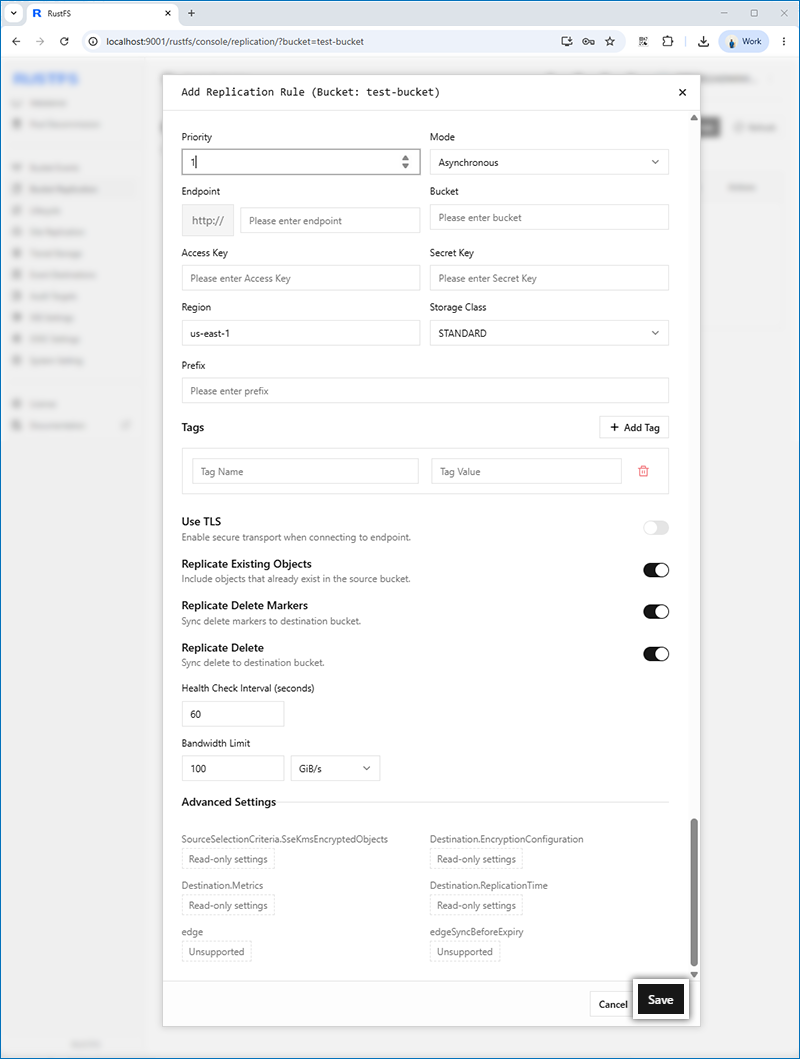
- In the Add Replication rule window,
- Set priority for your rule.
- Select Mode for replication (Asynchronous or Synchronous).
- Enter your IDrive e2 endpoint as Endpoint.
- Enter your IDrive e2 Bucket as Destination bucket.
- Enter your IDrive e2 Access Key as Access Key.
- Enter your IDrive e2 Secret Key as Secret Key.
- Enter the region and select Storage class type from the drop-down list (Ex: Standard).
- Enable TLS to set Default Certificate Verification, and select Advanced options as you want to set for your replication job then click on Save.
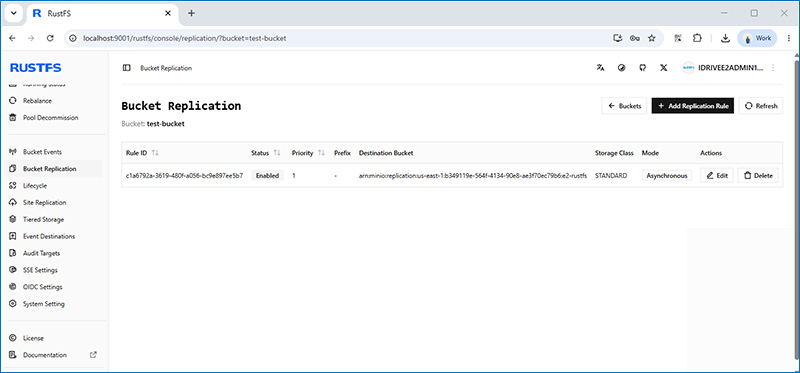
- The added rule will list on the Bucket Replication page, and replication will start.
Now, open your IDrive® e2 bucket in the web console and verify the replicated objects in the bucket.